The Optio approach
Different kinds of work.
One way to run them.
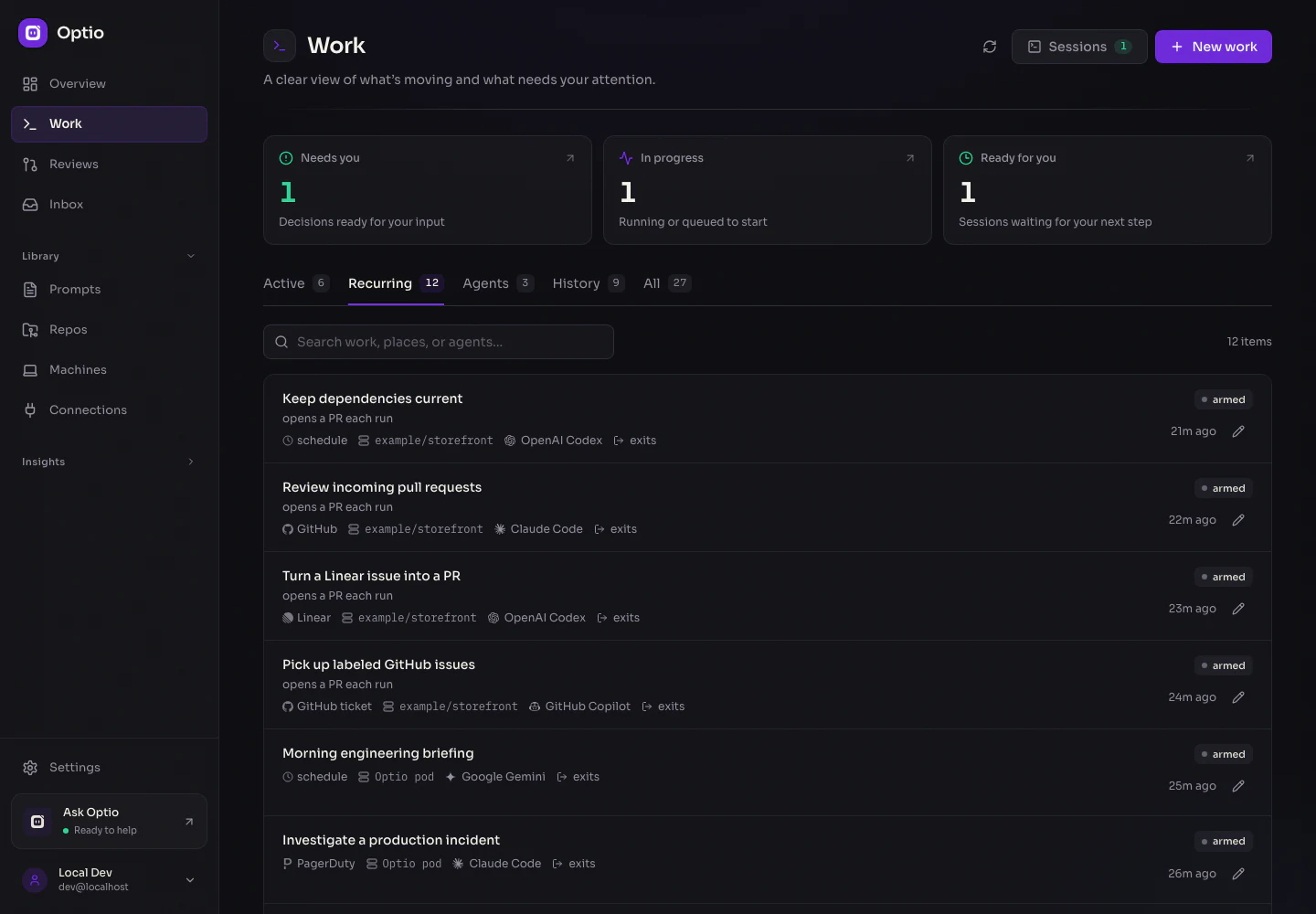
A coding task. A scheduled report. A terminal on your laptop. An agent your team can message. In Optio, they all start in the same place: Work.
 View full size ↗
Real Optio screens with fictional example data. Activity and usage shown are simulated.
01 / Define the work
Five answers.
A workflow that fits.
The same form creates a one-off run, a recurring workflow, an interactive session, or a persistent agent. Choose the behavior you need.
- 01
When
Start now, set a schedule, or respond to tickets, webhooks, and events from GitHub, Slack, Linear, Pylon, or PagerDuty.
- 02
Where
Use an Optio pod with a repository or without one, or work in a directory on a paired machine. Configure the pod’s environment here, too.
- 03
Who
Choose Claude Code, Codex, Copilot, Gemini, Cursor, OpenCode, or OpenClaw where supported. Use a terminal for shell commands and interactive work.
- 04
What
Write the instructions, reuse a prompt template, or supply a shell command. Trigger parameters can fill in the details for each run.
- 05
Then
Exit when done, wait for your next turn, or keep a persistent agent available for messages. Repo work can open a PR and follow it through review and merge.
See the same five answers in action.
Choose an example to see what runs and what happens next.
- When
- GitHub ticket labeled optio
- Where
- Optio pod · storefront repo
- Who
- OpenAI Codex
- What
- Reproduce the bug, fix it, and add a regression test.
- Then
- Open a pull request
What happensA labeled ticket becomes a code change you can review. Optio tracks CI and review feedback; automatic review and resuming are configurable.
The form is the model
Create it once.
Refine it in the same place.
The Work editor summarizes your choices in plain language before you save. Recurring work uses that same editor when its schedule, prompt, runtime, or environment needs to change.
Environment lives under Where: start with your repo and workspace defaults, then choose connections, MCP servers, skills, secrets, and setup commands for this work.
Explore the Work model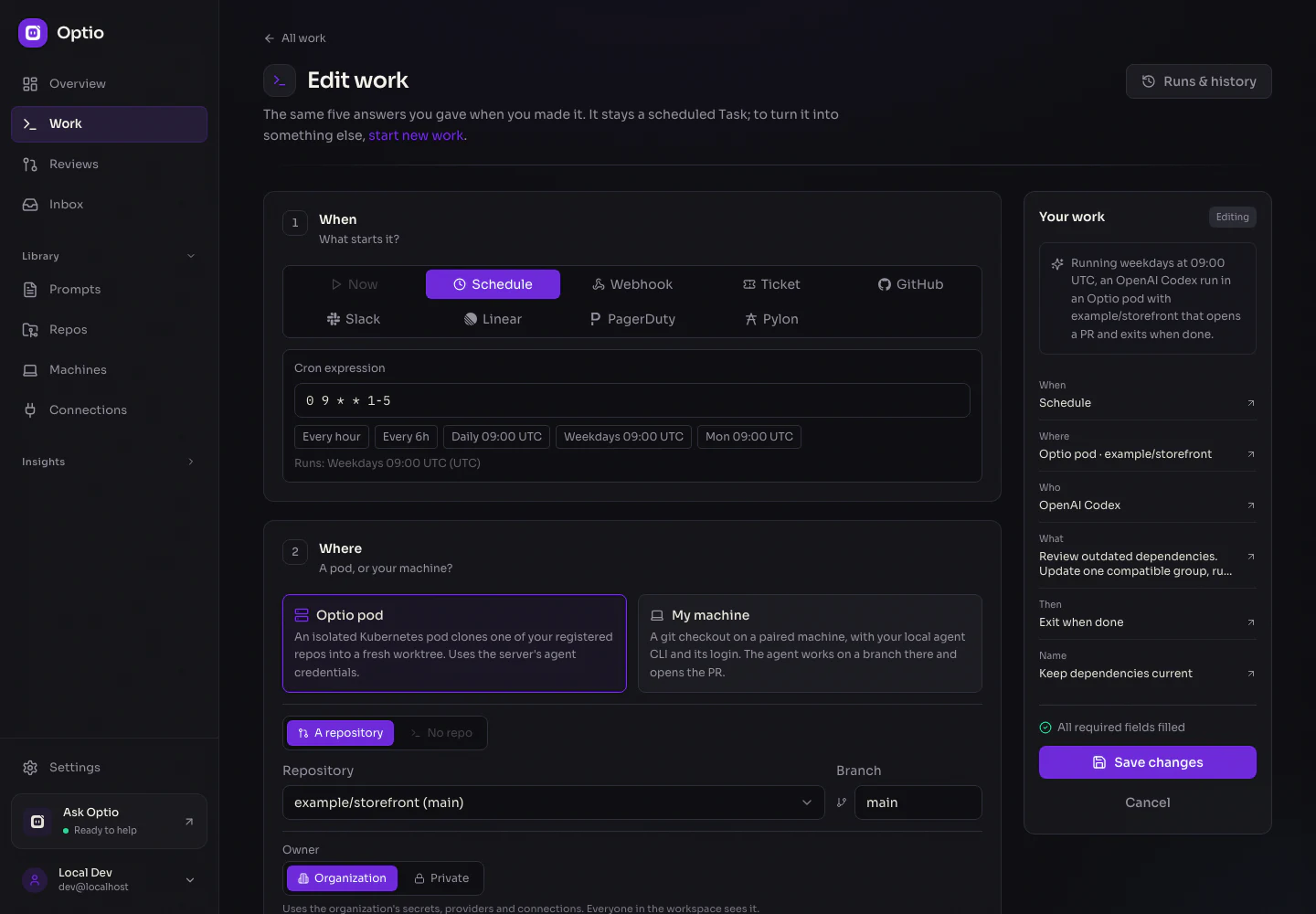 View full size ↗
02 / Choose where it runs
Your infrastructure.
Your way of working.
Run agents in your Kubernetes cluster or connect a machine with Optio Local. Choose a runtime for the work, with a shell available when no agent is needed.
Give the work a workspace.
Repo tasks use separate git worktrees in pooled pods. Work without a repo can run reports, use connected services, or execute commands. Persistent agents have a pod and can work with a repo, too.
How execution works ↗Use the setup you already have.
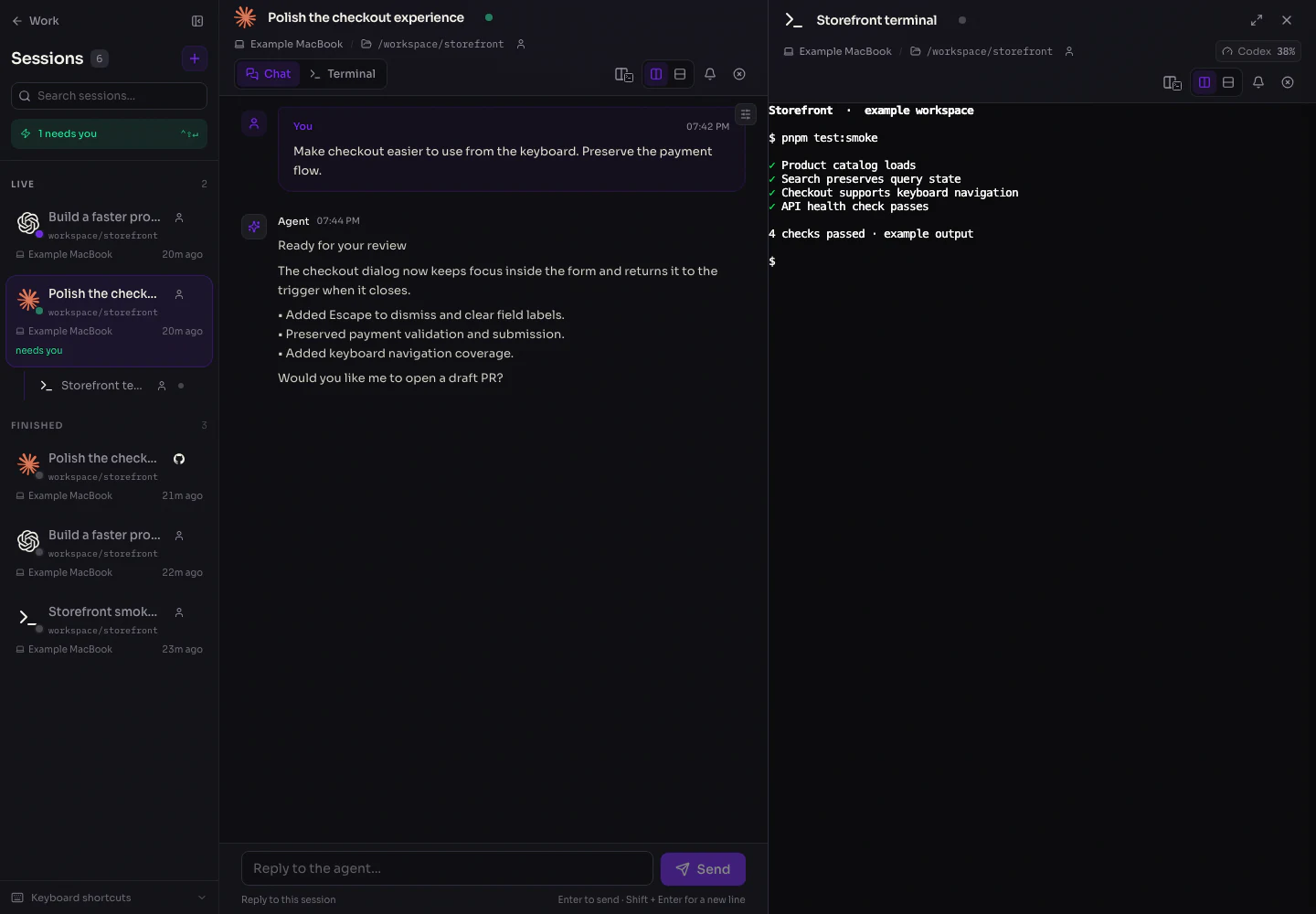
Pair a machine, choose an allowed directory, and use its installed agent CLI, configuration, and login. Start interactively or attach a trigger to a local automation.
Explore local work ↗Available choices follow the workflow: persistent agents live in pods; following a PR requires an agent and a repository.
 View full size ↗
03 / Follow it through
Starting is only
part of the workflow.
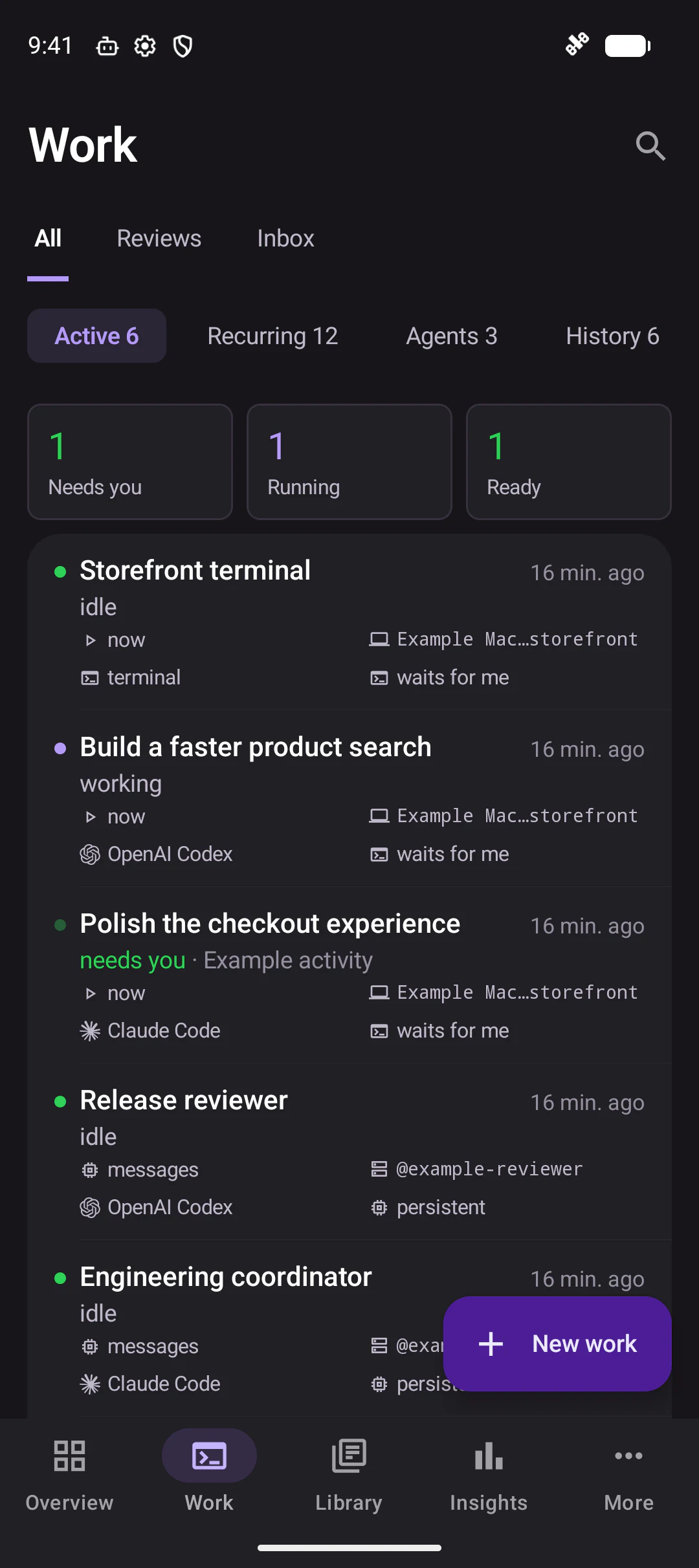
Keep the conversation, run history, and next decision connected. Open Work for the full picture, Reviews for code review, and Inbox for requests that need attention.
From ticket to PR
Follow CI checks, review feedback, and merge status. Enable automatic code review and resuming where appropriate, with limits set by the repo and the work.
From trigger to history
Each recurring run keeps its own outcome and logs. See what happened last time before changing the workflow or starting it again.
From message to next turn
Persistent agents wait between turns and wake on messages or configured triggers. Give specialists their own instructions and let them coordinate through the inter-agent API.
Web · iOS · Android · CLI
Step away.
Stay in the loop.
Native iOS and Android apps let you check work, return to a session, and respond when an agent needs you. Widgets and live status surfaces keep progress visible between check-ins.
Explore the mobile apps ↗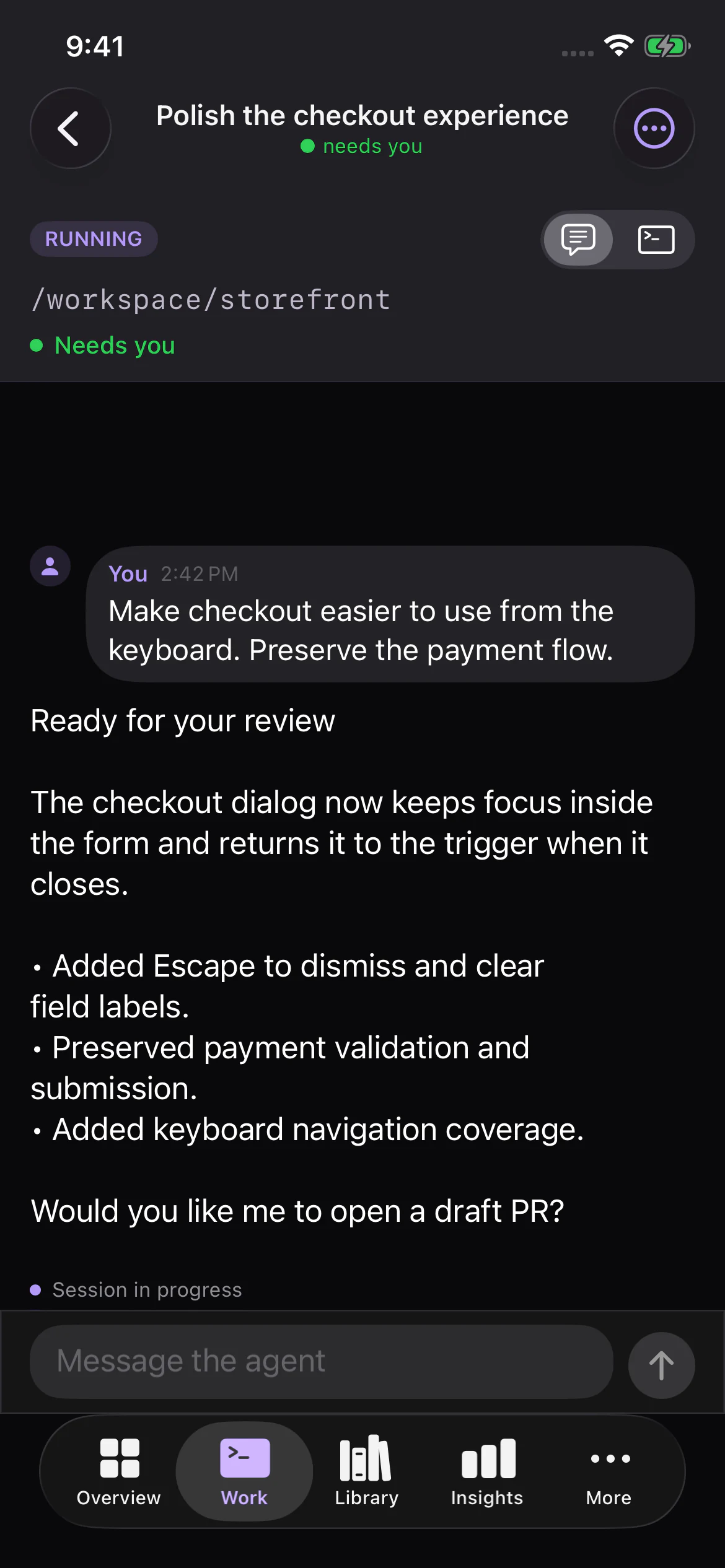
04 / Keep control
Shared work.
Explicit boundaries.
Optio is self-hosted and open source. Your team chooses who owns the work, which resources it uses, and how much it can do on its own.
Organization or Private
Organization work uses shared resources. Private work is hidden from other members; its owner changes and runs it. Workspace admins can inspect it read-only and delete it for administration.
The right tools for each run
Connections bring service credentials, tools, shell environment, and instructions together. Add or remove access for pod work instead of giving every agent the same environment.
Review rules that hold
Work can request extra review, draft PRs, or fewer automatic resumes. Per-work settings can tighten a repository’s PR policies; they cannot loosen them. Viewers stay read-only for work controls.
Repeatable configuration
Keep supported work definitions and resources in YAML. Apply and export them with the CLI, or sync a mounted configuration directory to keep managed resources aligned.
Start with one piece of work
Choose the work.
Make room for what’s next.
Connect a repo or pair a machine, choose your agent, and give it something useful to do.